
A Pipedrive follow-up routine for active inquiries
Use the pipeline view to review active deals, schedule the next action and check the reporting effect of moving a deal to another pipeline.
Before you begin
The short answer
Treat each active inquiry recorded as a Pipedrive deal as a queue for review: check its next activity, schedule or complete a follow-up, and use the Rotting feature to spot deals that have not been updated recently. Before moving a deal to another pipeline, note that Pipedrive says a deal can be in only one pipeline at a time and that deal-progress reports reflect movements within the current pipeline.
This routine is based on Pipedrive help documentation, not a hands-on test in a live account. The suggested review steps have not been shown to improve follow-up outcomes.
Review the active pipeline
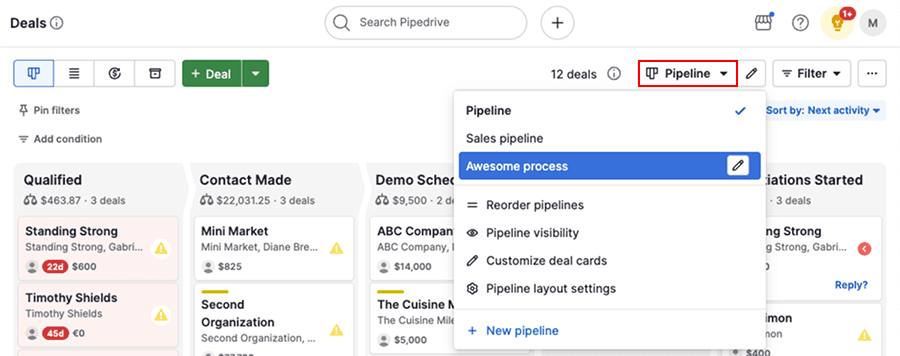
Start in the pipeline that represents the inquiry process you want to review. Use the pipeline selector to switch pipelines, and apply a filter if you need to focus on particular deals or a time frame.
Pipedrive’s help documentation says deals are sorted by next activity by default. Scan the cards for the next steps that need attention; the Rotting feature can highlight deals that have not been updated recently. Treat that highlight as a prompt to inspect the record, not as proof that a follow-up was missed.
- Open a deal card for its full details, including activities, notes, email conversations, files and documents.
- Use the activity icon on a card to check upcoming activities.
1 supporting sources
Give each active deal a next action
As a practical review routine, check each active deal for a useful next step. If one is needed, schedule an activity from the deal card; when an activity is complete, mark it done and decide whether another should be scheduled. This is a suggested way to use the documented controls, not a tested follow-up method or a guarantee of results.
- Before leaving a deal, check that its next activity reflects the follow-up your team intends to make.
- Use the card’s activity control to schedule a new activity or mark an existing one done.
1 supporting sources
Check reporting before moving a deal
Pipedrive’s help documentation says a deal can exist in only one pipeline at a time. You can move it to another pipeline, but first note the change if you use Insights to review deal progress: the documentation says those reports reflect movements within the current pipeline. Check the relevant report after a transfer rather than assuming it will show a continuous path across pipelines.
- Confirm which pipeline should own the deal after the move.
- Review the applicable Insights report and interpret its deal-progress data in light of the pipeline change.
1 supporting sources
Limitations & context
How can I use Pipedrive's pipeline view to review active inquiries, schedule next actions and check what changes when a deal moves between pipelines?
- This routine is based on Pipedrive help documentation, not a hands-on test in a live account. The suggested review steps have not been shown to improve follow-up outcomes.
- Your inquiry workflow, reporting setup and account permissions are unknown. The cited documentation does not establish how every report or configuration behaves.
1 source records
- Pipedrive pipeline view: vendor help documentationsupport.pipedrive.com Captured